
Close Menu
Gsm lover | Make Money Online By Freelancing
  • Home
  • Make Money Online
    • Freelancer
  • WordPress
    • WordPress Tutorials
    • SEO
  • Windows
  • YouTube
  • Health
  • About us
  • Contact us
  • Web Stories
What's Hot

The Secret to Increasing YouTube Views & Subscribers

March 24, 2025

Best Food for Heart Health: Top Choices for a Stronger Heart

February 8, 2025

Best Food for Health in Winter

February 6, 2025
Facebook X (Twitter) Instagram
Gsm lover | Make Money Online By FreelancingGsm lover | Make Money Online By Freelancing
Facebook X (Twitter) Instagram
SUBSCRIBE
  • Home
  • Make Money Online
    • Freelancer
  • WordPress
    • WordPress Tutorials
    • SEO
  • Windows
  • YouTube
  • Health
  • About us
  • Contact us
  • Web Stories
Gsm lover | Make Money Online By Freelancing
Gsm lover | Make Money Online By Freelancing » Featured » How to Install WordPress on Live Server from cPanel
Featured

How to Install WordPress on Live Server from cPanel

Silent AngelBy Silent AngelJune 4, 2021Updated:December 14, 2022No Comments2 Mins Read
Facebook Twitter Pinterest LinkedIn Tumblr WhatsApp Telegram Email
how to install wordpress on liver server
Share
Facebook Twitter LinkedIn Pinterest Email

How to Install WordPress on Live Server from cPanel

Before you install WordPress, first you will need a domain name and a good web hosting company that knows WordPress.

How to Install WordPress on Xampp Localhost.

Cpanel is a popular software used by many web hosting companies. It provides website owners with a simple web-based interface to manage their hosting account.

It is a one-stop access to several useful utilities including auto-installer scripts that help you install WordPress.

Hosting companies select which auto-installer script they want to use. Generally, Softaculous, QuickInstall, and Fantastico are the most popular options.

We will show you how to install WordPress using all three auto-installers. You can follow the instructions, based on the installer you see on your cPanel dashboard.

Softaculous is a popular auto-installer script. It allows you to easily install popular web applications like WordPress with just a few clicks.

wordpress installation via cpanel step 1

Clicking on these icons will launch Softaculous auto-installer for WordPress.
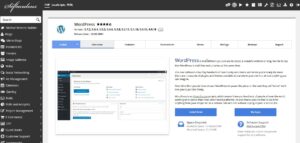
wordpress installation via cpanel step 2

First, you will see an overview of WordPress. You need to click on the Install tab to continue.

you need to choose the domain name where you want to install WordPress. Most users want to install WordPress in their domain’s root directory, like example.com. In that case, you need to make sure that the ‘In Directory’ field is blank. Scroll down a little, and you will see the site settings section.

Under this section, first you need to provide a title and description for your WordPress site. Don’t worry you can easily change them from your WordPress Admin Dashboard after installation. Next, you need to choose an admin username, password, and email address. Softaculous will automatically fill in the username and password fields for you. It will use a non-dictionary word for username and a strong password.
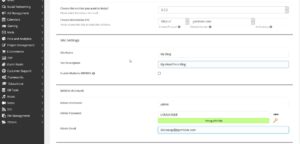
wordpress installation via cpanel step 3

Softaculous will run the installer using the settings you provided. You will see a progress bar with installation status. It will take a couple of minutes. Do not close the window until the progress bar reaches 100% otherwise, this may affect your WordPress installation.

softaculous wordpress Instalation progress


Related

cpanel live server Softaculous wordpress install on live server
Share. Facebook Twitter Pinterest LinkedIn Tumblr Email
Silent Angel
  • Website

Related Posts

How to Achieve 100% WordPress loading speed

November 23, 2022

How to unlock pro feature of elementor | Auto update elementor pro

September 16, 2022

How to WordPress Speed Optimization | Speed Up WordPress Website

August 20, 2022

How to Fix Leverage Browser Caching Error in WordPress

June 7, 2022

Upwork has launched Upwork Academy to help freelancers.

June 6, 2022

12 SEO Data Points That Every Website Should Have

May 31, 2022
Add A Comment
Leave A Reply Cancel Reply

Don't Miss
Wordpress

How to Achieve 100% WordPress loading speed

November 23, 2022

How to Achieve 100% WordPress loading speed. Today we will see how to get the…

How to unlock pro feature of elementor | Auto update elementor pro

September 16, 2022

How to WordPress Speed Optimization | Speed Up WordPress Website

August 20, 2022

How to Fix Leverage Browser Caching Error in WordPress

June 7, 2022
Stay In Touch
  • Facebook
  • Twitter
  • Pinterest
  • Instagram
  • YouTube
Our Picks

The Secret to Increasing YouTube Views & Subscribers

March 24, 2025

Best Food for Heart Health: Top Choices for a Stronger Heart

February 8, 2025

Best Food for Health in Winter

February 6, 2025

How to Keyword Research YouTube Video for Maximum Reach

August 12, 2023

Subscribe to Updates

Get the latest creative news from Gsm Lover about Freelancing, WordPress Web Development, SEO .

    Please Confirm

    Recent Posts
    • The Secret to Increasing YouTube Views & Subscribers
    • Best Food for Heart Health: Top Choices for a Stronger Heart
    • Best Food for Health in Winter
    Gsm lover | Make Money Online By Freelancing
    Facebook X (Twitter) Instagram Pinterest
    • Home
    • Windows
    • Freelancer
    • WordPress
    • SEO
    • Contact us
    • About us
    © 2026 GsmLover. Designed by Pro WP Web.

    Type above and press Enter to search. Press Esc to cancel.