



WooCommerce Shortcodes
WooCommerce shortcodes are small code snippets which you can place anywhere in your site to display WooCommerce products or calls to action such as ‘Buy Now’ buttons.
1. Using a WooCommerce shortcode to add products to the homepage
This is an ideal space to display a dynamically updated grid of your latest products. Once the shortcode has been added, you don’t need to edit it again. It will automatically display the most recent products, giving your homepage a fresh new feel each time you add new items to your store.
To describe each attribute:
- Limit – the number of products to display
- Columns – the number of columns. This should be based on the number of products being displayed.
- Orderby – you can arrange these by date, id, post__in, menu_order, popularity, rand, rating and title.
- Order – this is either in descending order (DESC), or ascending (ASC).
- Visibility – the products viewable within the shop and search results.
This WooCommerce shortcode results in a neat grid of 8 products, divided into 4 columns. If you want this is very each to change into a grid of say, 3. You could adjust the limit value to 6 and the columns value to 3 to keep it looking neat.
This WooCommerce shortcode results in a neat grid of 8 products, divided into 4 columns. If you want this is very each to change into a grid of say, 3. You could adjust the limit value to 6 and the columns value to 3 to keep it looking neat.

Displaying the products in a specific order
But what if you want to display them in a specific order?
This was tricky to find this within WooCommerce’s documentation but after a bit of digging I found the solution.
[products ids=”23, 13, 12, 11, 24, 16″ orderby=”post__in”]
This will display the items starting with the product with ID 23, next is ID 13 etc.
2. Displaying the most popular products using WooCommerce shortcodes
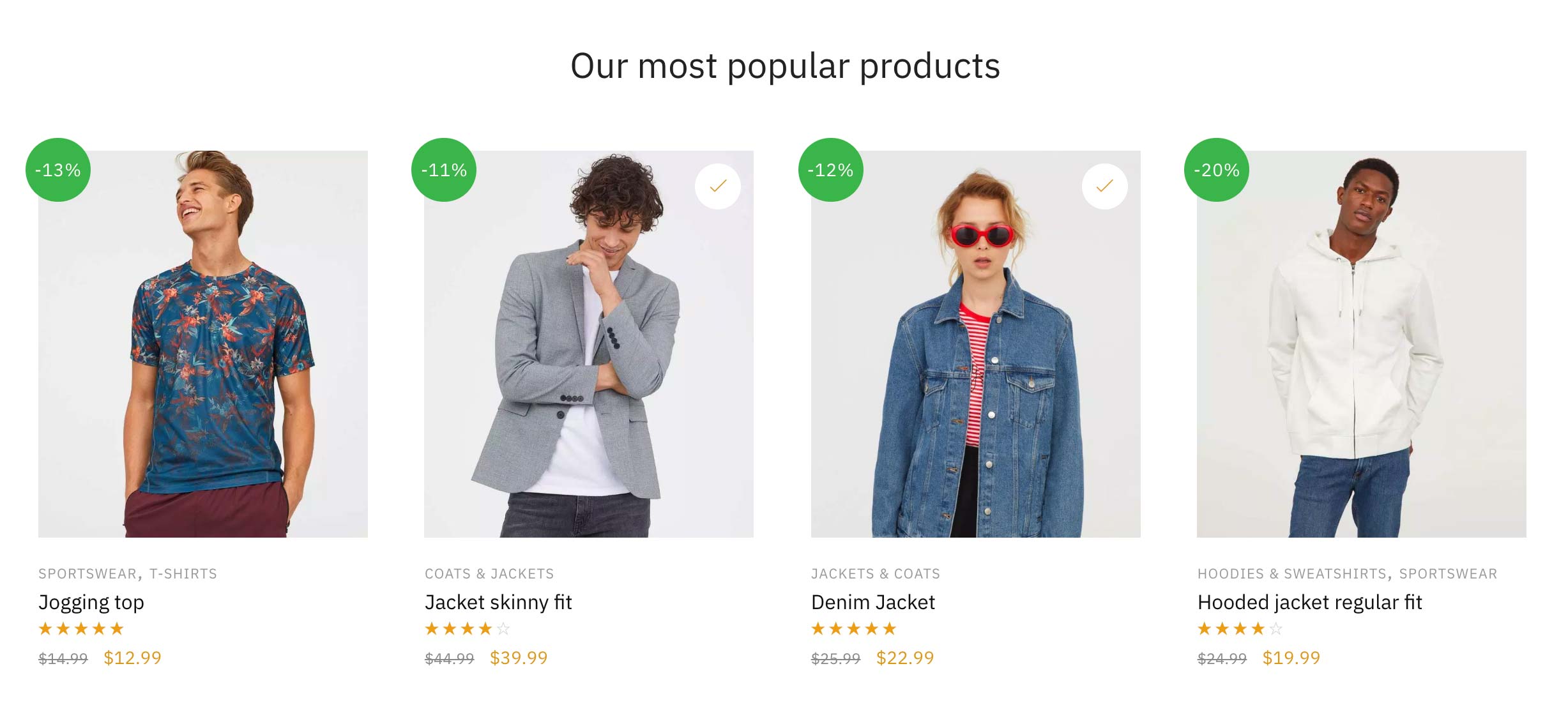
Just as you can show the most recent items, it is also possible to display your best selling products. This again is dynamically updated and is great to show seasonal popular gift ideas. You can use the following WooCommerce shortcode for this:
[products limit=”4″ columns=”4″ orderby=”popularity” ]
3. Creating a grid of items which are on sale
The key additional variables are the on_sale=”true” and the category=”men” which lists only sale items within the aforementioned category. Leaving out the specific category selector name will simply display all sale items amongst every category.
[products limit=”100″ columns=”4″ orderby=”popularity” on_sale=”true” category=”men” ]

4. How to display the WooCommerce category list shortcode
It’s also possible to not just display products via WooCommerce shortcodes. You can show categories too.
[product_categories]

5. How to show specific categories?
The first step is to find the unique ID of each product. You can do this by going to Products and hovering over the item in question.
[products ids=”677, 680, 691″ columns=”3″]

You can see in the example above that this particular product’s ID is 677. Do the same for two more products and write down the IDs for each.
You’ll see the three numbers are separated by commas. They’ll be displayed in the order you specify. I’m using columns=”3″ as there are three ids listed. If I were to show four items, I’d change this to columns=”4″

6. Adding just a single product to a blog post (includes custom CSS)
If we want to add just a single product to a post, it’ll take up the entire width of the content – which would look a bit strange. I would like to float it to the right and let the text to flow around it.
Firstly, the WooCommerce shortcode, with just one product looks like this.
[products ids=”694″ columns=”1″]
And now some custom CSS which you can add to: Appearance > Customize > Additional CSS. Note the presence of a media query, which means the style kicks in on viewports above 768px. So, on smaller screens, the product will be full width.
@media only screen and (min-width: 768px) {
.single-post ul.products.columns-1 {
max-width: 300px;
float: right;
border-left: 1px solid #e2e2e2e2;
padding-left: 40px;
margin-left: 50px;
}
}

7. Using the WooCommerce add to cart shortcode
The WooCommerce add to cart shortcode for this is simply:
[add_to_cart id=”694″]
You can Place ID for the product you want to display.

8. How to create an order tracking page with a WooCommerce shortcode
Order Tracking page is not Default page of Woocommerce. You’d need to create this yourself, by yes, using a WooCommerce Shortcode.

9. What is the WooCommerce cart shortcode?
The WooCommerce cart shortcode is simply this:

